How to Collect Payments on WhatsApp With Razorpay: UPI QR Codes and Payment Links
Payment links or UPI QR codes, sent in the chat and paid into your own Razorpay account: how it works, how to set it up, and what happens after the customer pays.
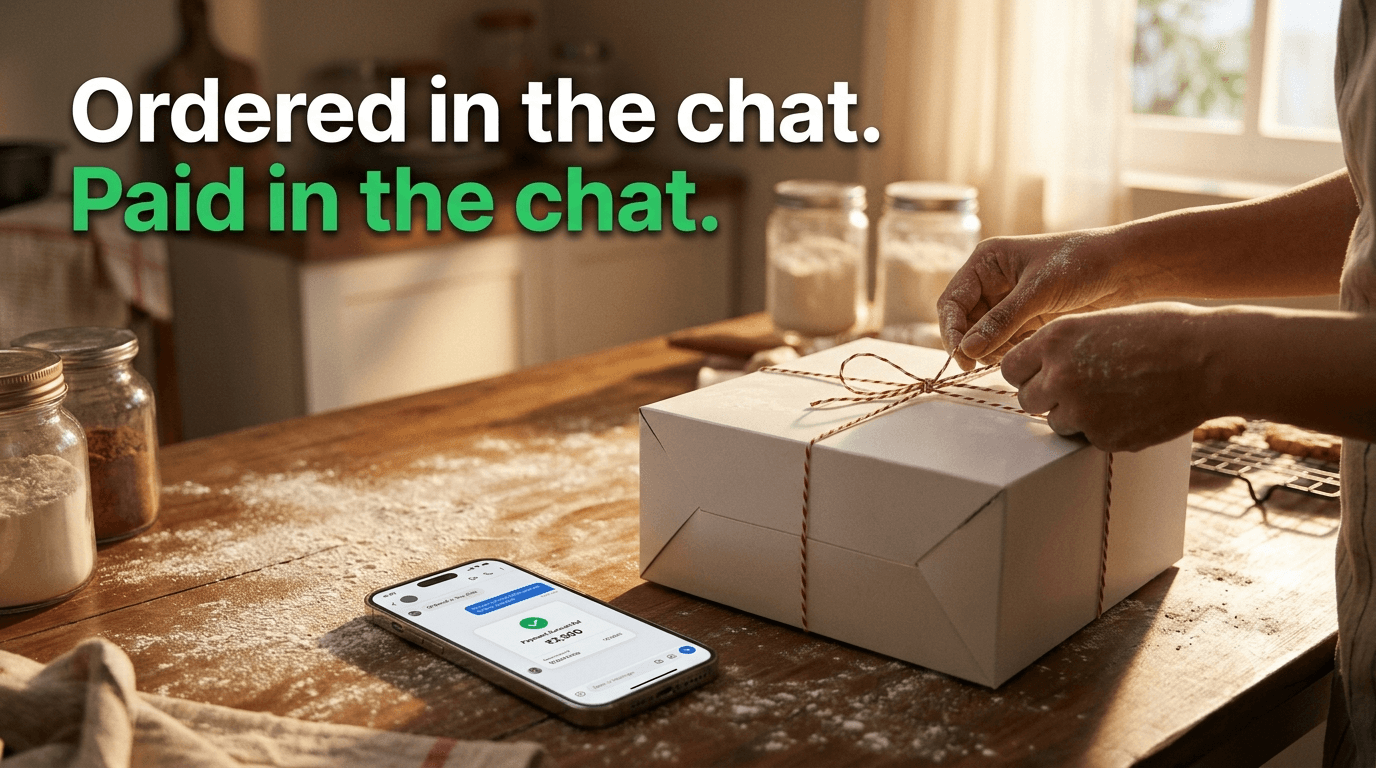
The simplest way to collect a payment on WhatsApp is to send the customer a Razorpay payment link or a UPI QR code in the chat. They pay with UPI, a card or netbanking, the money goes straight into your own Razorpay account, and your system sees the payment within seconds. You need a Razorpay account, its API keys, and a WhatsApp Business Platform tool that can create the request, send it, and react when it's paid.
Two ways to get paid inside WhatsApp
1. A Razorpay link or QR code sent in the chat. This works with any Razorpay account. The customer taps the link or scans the code, pays on Razorpay's page or in their UPI app, and comes back to the chat. This is what this article covers.
2. Meta's own payments for India. Meta's Payments API for India lets a business send an invoice-style message that the customer pays with "all UPI apps installed on their devices", either through a UPI Intent mode that works with any gateway able to generate UPI Intent, or a deeper integration "supported for Razorpay, PayU, Billdesk, and Zaakpay only". It's more native, and it takes more setup with Meta and your payment gateway.
Payment link or UPI QR code?
- A payment link opens a Razorpay checkout page. Razorpay says customers can pay "using Card, UPI, NetBanking, Wallet, EMI, Pay Later and Bank Transfer options". It's one tap from the chat, so it's the easiest choice when the customer is paying on the same phone.
- A UPI QR code is an image the customer scans with any UPI app. It's ideal when the customer can scan it from another screen, at a counter or on a delivery. On the same phone, they'd have to save the image and open it from their UPI app, so a link is usually smoother.
A few Razorpay details worth knowing:
- QR Codes is a separate Razorpay product. Razorpay asks you to "Raise a request through a Point of Contact (POC) or the Dashboard to enable QR Codes for your account."
- Test mode is different for each. Standard payment links can be paid in Razorpay's test mode, on a mock payment page. In our testing, QR codes created with test keys couldn't be paid, so try QR with live keys and a small amount.
- Single-use or reusable. A single-use QR closes after one payment; a reusable one can take many (for example, a QR for a stall or a counter).
What you need before you start
- A Razorpay account, with QR Codes enabled if you want QR.
- API keys from Account & Settings → API Keys (test keys start with rzp_test_, live keys with rzp_live_).
- A webhook in your Razorpay dashboard pointing at your WhatsApp tool, so payments are reported back the moment they happen.
Setting it up in WAPGROWAI
In WAPGROWAI, it's under Commerce → Payments. The setup screen shows the webhook address to paste into Razorpay, the five events to tick, and fields for your key ID, key secret and webhook secret.
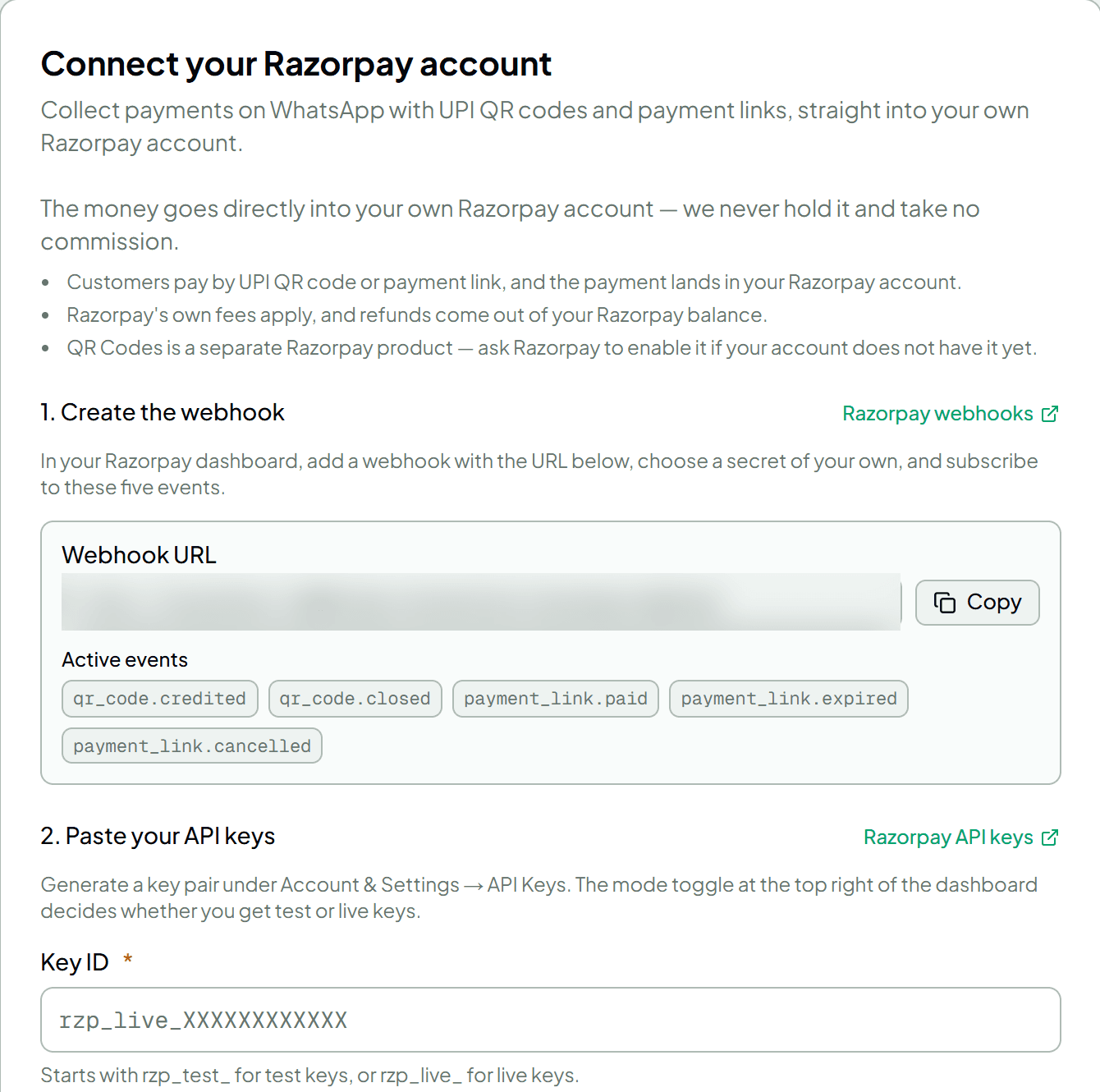
The money goes directly into your own Razorpay account. WAPGROWAI never holds it and takes no commission; Razorpay's own fees apply, and refunds come out of your Razorpay balance.
Every way to send a payment request
Once connected, you can ask for payment from several places:
- From the Payments page. Create a payment link or QR code with an amount (₹1 or more), a description and an expiry, and send it to one customer or up to 50 at once.
- From the inbox. An agent sends a link or QR you've already created, with a note, straight into the conversation.
- Automatically, with a rule. For example: when someone types "pay", send a ₹499 link.
- From a template button. A campaign message with a "Pay now" quick-reply button can send the request when it's tapped.
- Inside a chatbot. The Collect payment block creates the request, waits, and then carries on down a "paid" or "expired" path. If the customer writes while it's waiting, the bot sends the request again (up to three times).
- From an order. When a customer orders from your WhatsApp catalog, they can choose to pay online or by cash on delivery, and the payment link or QR can be sent automatically.
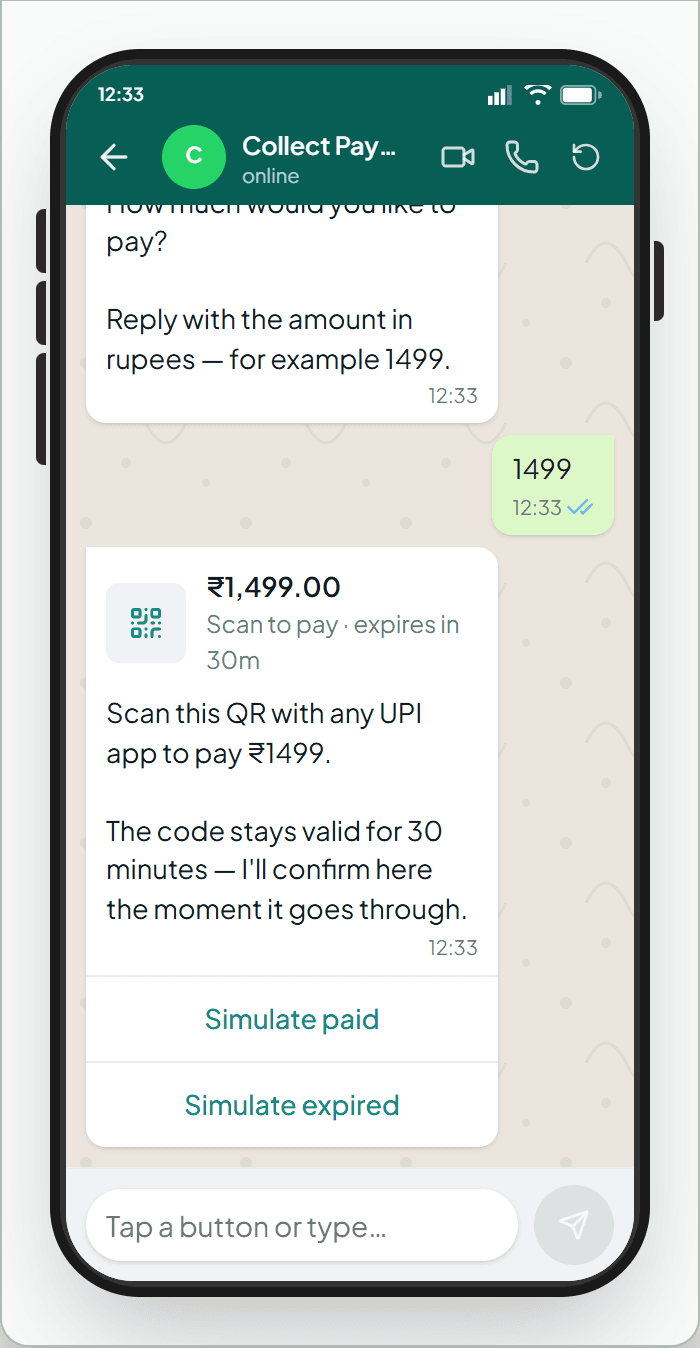
One WhatsApp rule applies throughout: a payment request is an ordinary chat message, so it can only be sent while the customer's 24-hour window is open, meaning they've messaged you in the last 24 hours. A template button gets around this neatly: tapping it is a reply from the customer, which opens the window.
What happens after the customer pays
Razorpay reports the payment to WAPGROWAI through the webhook, and a background check every 30 seconds catches anything the webhook missed. Then:
- The request is marked paid, with the amount, method and UPI ID on the Transactions page.
- An order is marked paid, and the customer gets a "payment received" message.
- A waiting chatbot continues down its "paid" path, for example to confirm a booking.
- "Payment received" rules run: send a thank-you, tag the contact, or start the next step.
If nobody pays, the request expires at the time you set, and a waiting chatbot follows its "expired" path instead.
Tips that save support time
- Say what the payment is for. "₹1,499 for the Saturday cake order" gets paid faster than "₹1,499".
- Keep expiries short for QR codes. In WAPGROWAI a single-use QR code lasts up to two hours; a link can stay open much longer.
- Confirm in the chat. Customers trust a "Payment received, thank you" more than a redirect page.
- Check what you're allowed to sell. WhatsApp's Commerce Policy generally restricts goods such as alcohol, tobacco, drugs, firearms and real-money gambling.
FAQ
Does WAPGROWAI take a share of the payment?
No. Payments go into your own Razorpay account. Only Razorpay's own fees apply.
Can customers pay without leaving WhatsApp?
They briefly leave to pay: a link opens Razorpay's page, and a QR code opens their UPI app. They come back to the chat for the confirmation. Meta's native Payments API for India is the option for paying inside WhatsApp itself.
Can I refund a payment?
Yes, from the Transactions page in WAPGROWAI or from your Razorpay dashboard. The refund comes out of your Razorpay balance.
Which currency can I charge in?
Indian rupees, through Razorpay. For international card payments, WAPGROWAI also supports Creem as a separate payment provider.
How do I test before going live?
Connect your test keys and send yourself a payment link: standard links can be paid in test mode. For QR codes, use live keys and a small real payment.
Next step
Start with the payment you request most often, a deposit, an order or a booking fee, and set up one rule or chatbot for it. WAPGROWAI connects to your own Razorpay account in a few minutes. WAPGROWAI is built by DI Solutions, a custom software and AI development company.
Sources
- Payments API for India — Meta for Developers
- WhatsApp Business Messaging and Commerce Policy — WhatsApp
Three more,
worth your time
Ready togrow on WhatsApp?
Join 10,000+ businesses turning conversations into revenue.
Start free trialBook a demo