
How to Sell and Get Paid Inside WhatsApp: Catalogs, Carts and Checkout
How a WhatsApp catalog, an in-chat cart and a checkout flow fit together — from the first product message to a paid, tracked order.
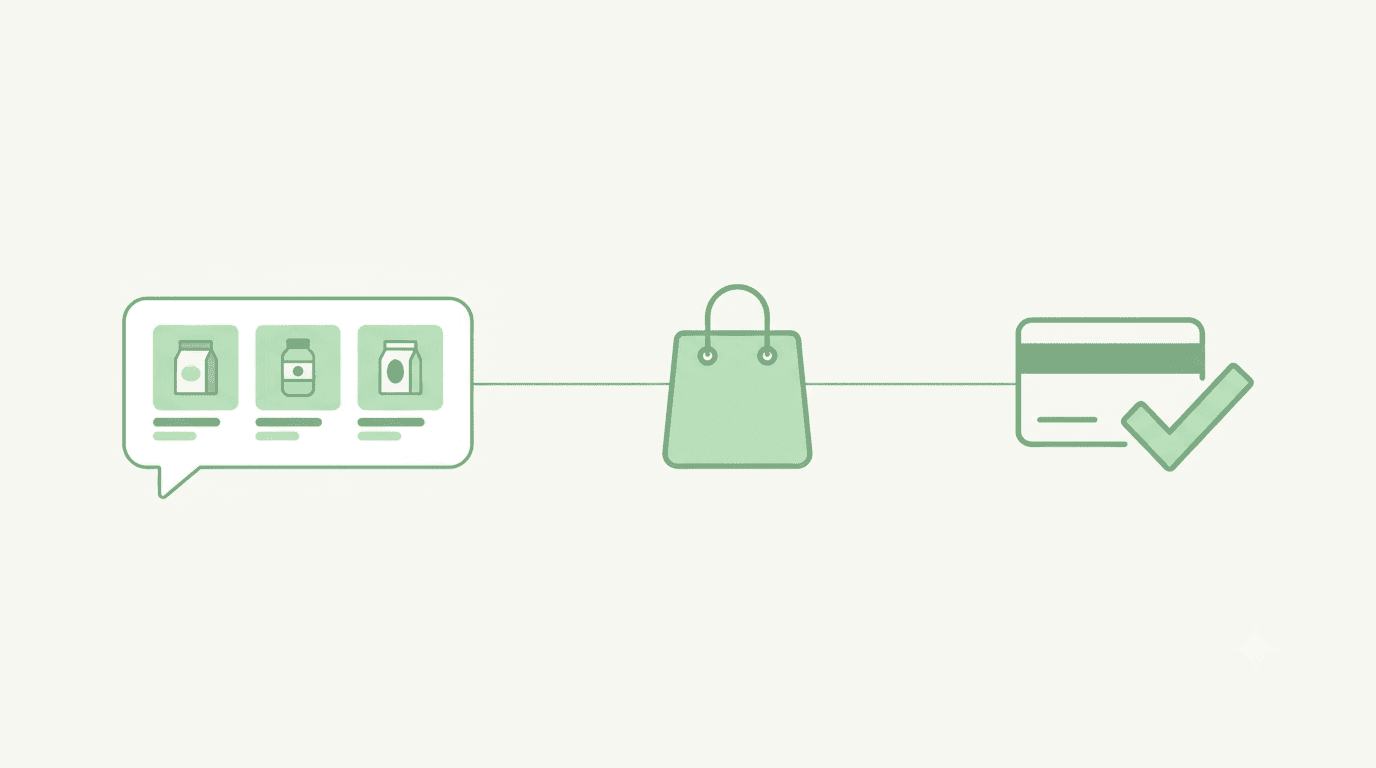
Customers already shop on WhatsApp — they just do it by typing. “Do you have this in medium?” “How much with delivery?” “Can I pay by UPI?” Every one of those messages is a sale in progress, and most end with someone on your team copying a price, asking for an address and sending a payment link by hand.
WhatsApp has the pieces to turn that into a proper checkout: product catalogs, in-chat carts and order messages. What it doesn't do is take the payment, collect the address or track the order. That part belongs to the software behind your number. This guide walks through the whole path — from putting products in front of a customer to a paid, tracked order — and what each step needs.
Who does what
Three parties are involved in every WhatsApp sale, and most confusion comes from expecting one of them to do another's job.
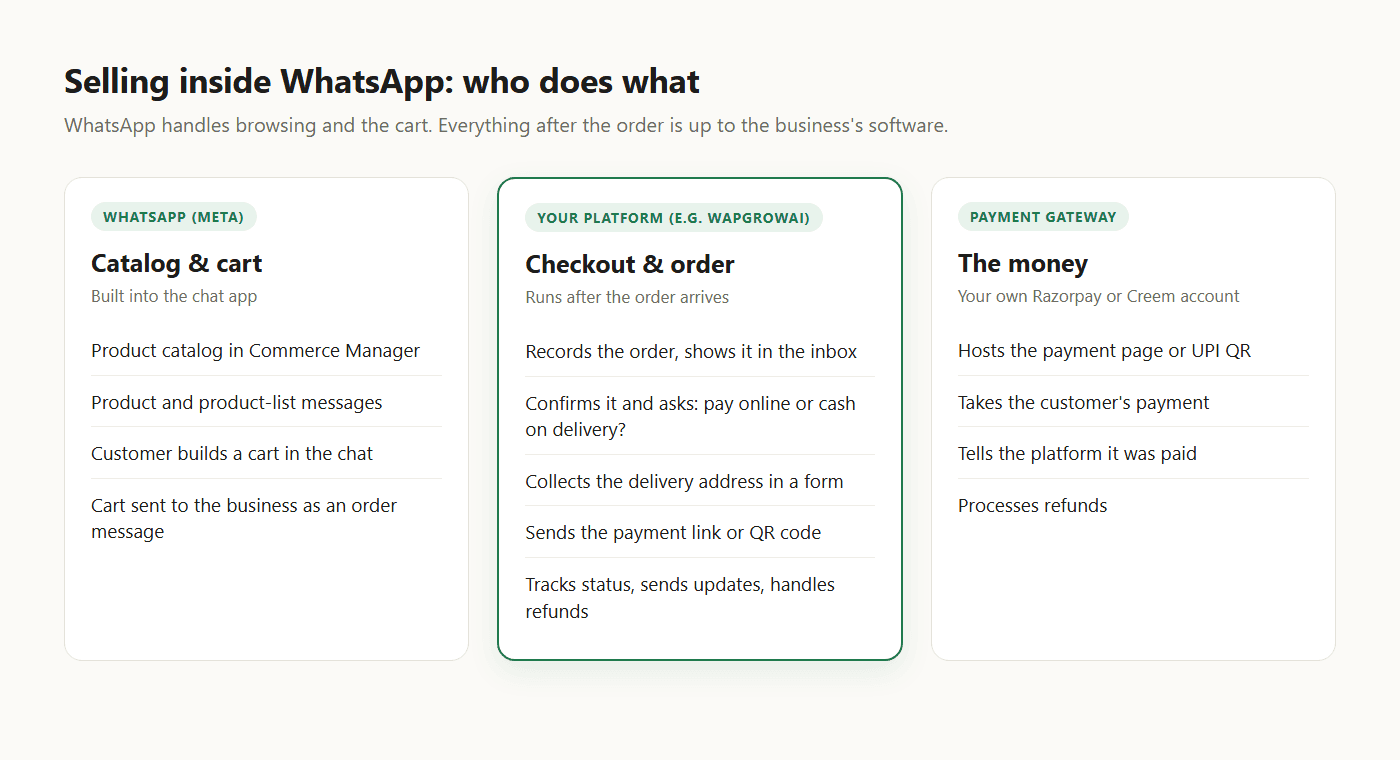
- WhatsApp (Meta) hosts your product catalog, shows product messages, and lets the customer build a cart and send it to you as an order.
- Your platform receives that order and runs everything after it: confirmation, payment choice, delivery address, payment request and status updates.
- Your payment gateway — your own account, not the platform's — hosts the payment page or QR code, takes the money, and tells the platform the order is paid.
Step 1: Build a catalog WhatsApp can show
The catalog lives in Meta's Commerce Manager, not in your chat software. The two common ways to fill it:
- A Google Sheet used as a data feed, so products update when the sheet does.
- Shopify, synced through Meta's own Facebook & Instagram sales channel.
If you sell in India, one rule catches people out: Meta requires a country of origin on each product (plus importer details for imported goods), and products missing it can't be sent as catalog messages. The country-of-origin guide shows where to add it.
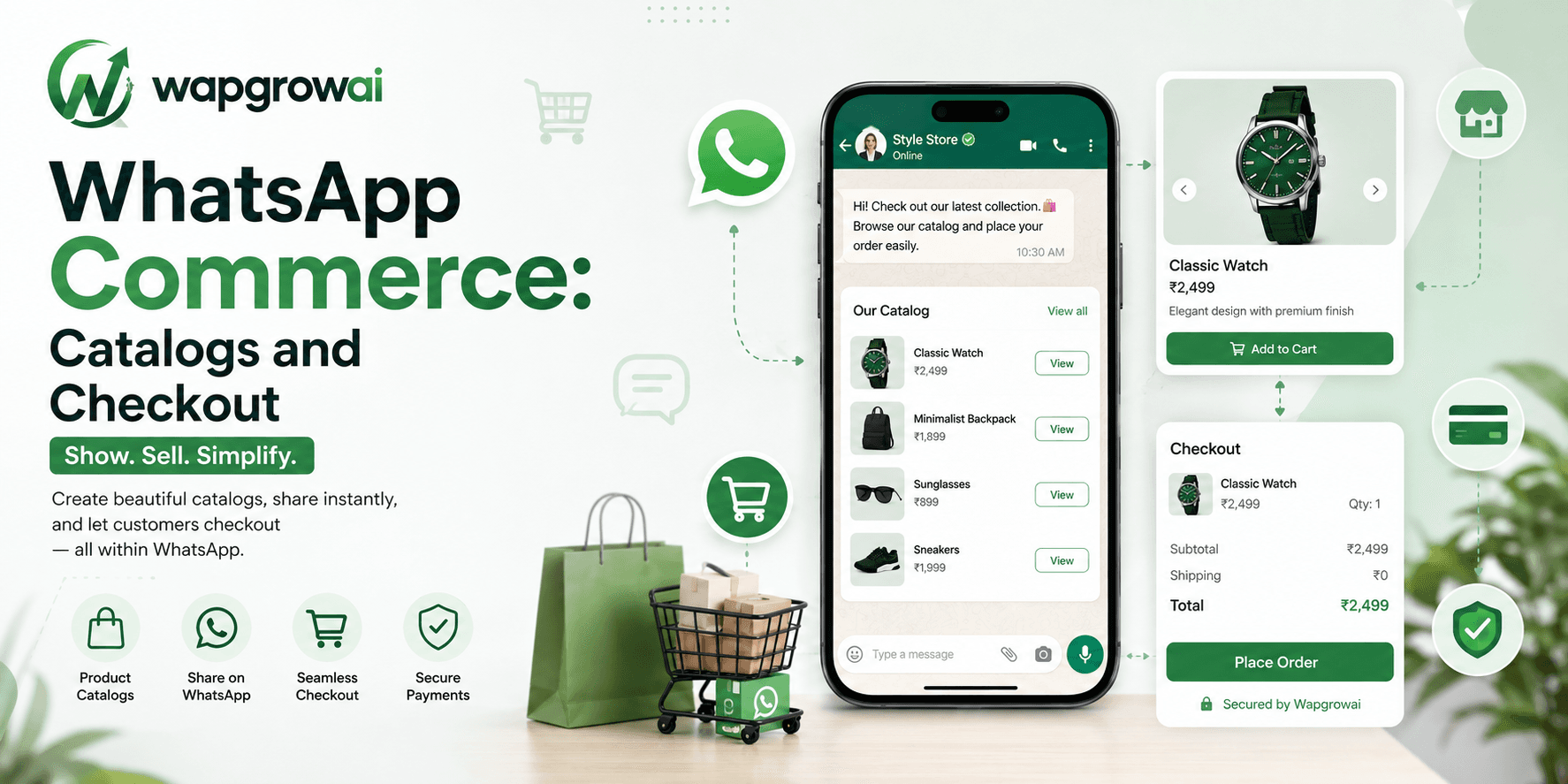
The catalog then has to be connected to your WhatsApp number and to the software that will handle orders. In WAPGROWAI this is a four-step setup: create the catalog, connect it to your WhatsApp account in Meta, assign WAPGROWAI as a catalog partner using the Business Manager ID shown in the app, and paste in the catalog ID. After that the app gives you a shareable catalog link and QR code for your website, packaging or social profiles. The catalog guide covers each step.
Step 2: Put products in front of the customer
WhatsApp has two product message types: a single product, and a product list of up to 30 items. Customers open each product, see the price and description, and add it to their cart without leaving the chat.
Sending them by hand doesn't scale, so the useful question is when products get sent. In WAPGROWAI they're sent from chatbot flows: a Product block sends one or more chosen items, and a Sets block sends a product set from your catalog. A typical flow asks one or two questions — “Shopping for yourself or a gift?” — and replies with the matching set, so the customer sees a short, relevant list instead of your whole range.
Step 3: The cart arrives as an order
When the customer taps to place the order, their cart reaches you as an order message with products, quantities and prices. This is the hand-off point: WhatsApp's part is done.
In WAPGROWAI the order is saved immediately, shown as an order card in the conversation so the agent sees exactly what was ordered, and added to the Orders page, where it can be filtered by status and moved from pending to processing, completed or cancelled. An “order placed” confirmation goes back to the customer straight away.
Step 4: Checkout in the chat
The business now needs three things it doesn't have yet: how the customer wants to pay, where to deliver, and the money. In WAPGROWAI these are set on the Checkout settings page.
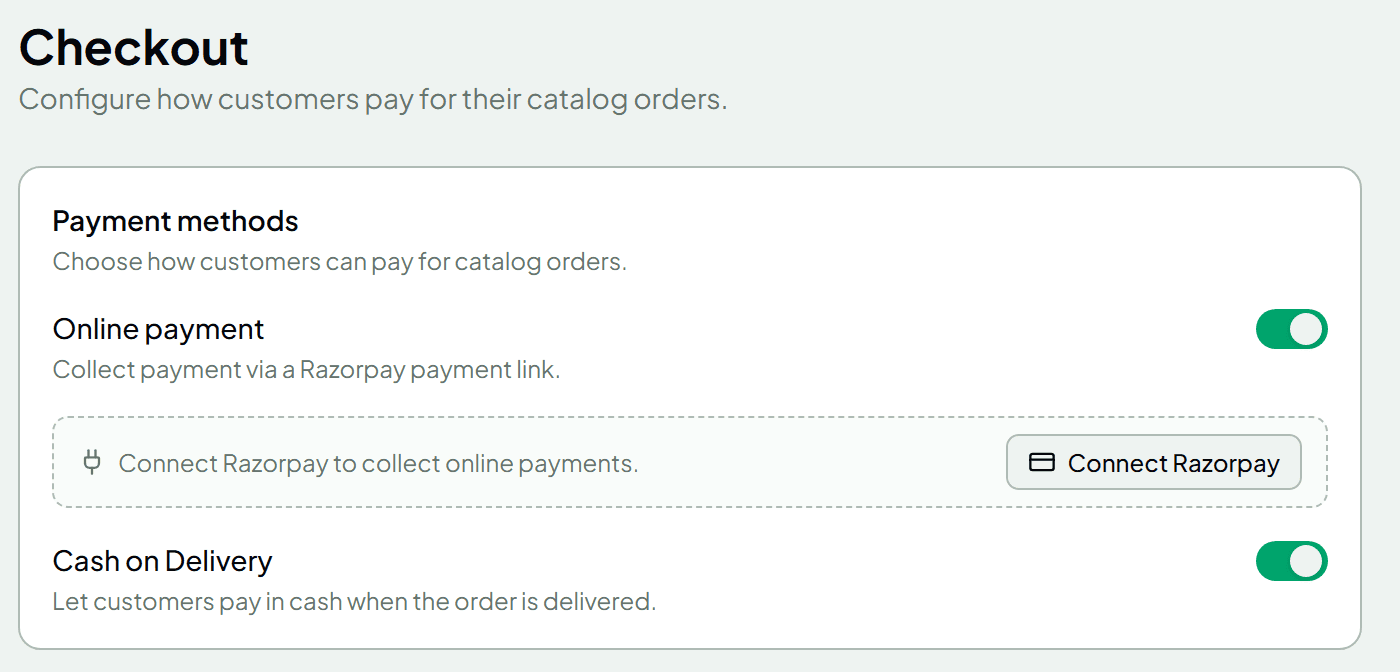
With automatic collection switched on, checkout runs like this:
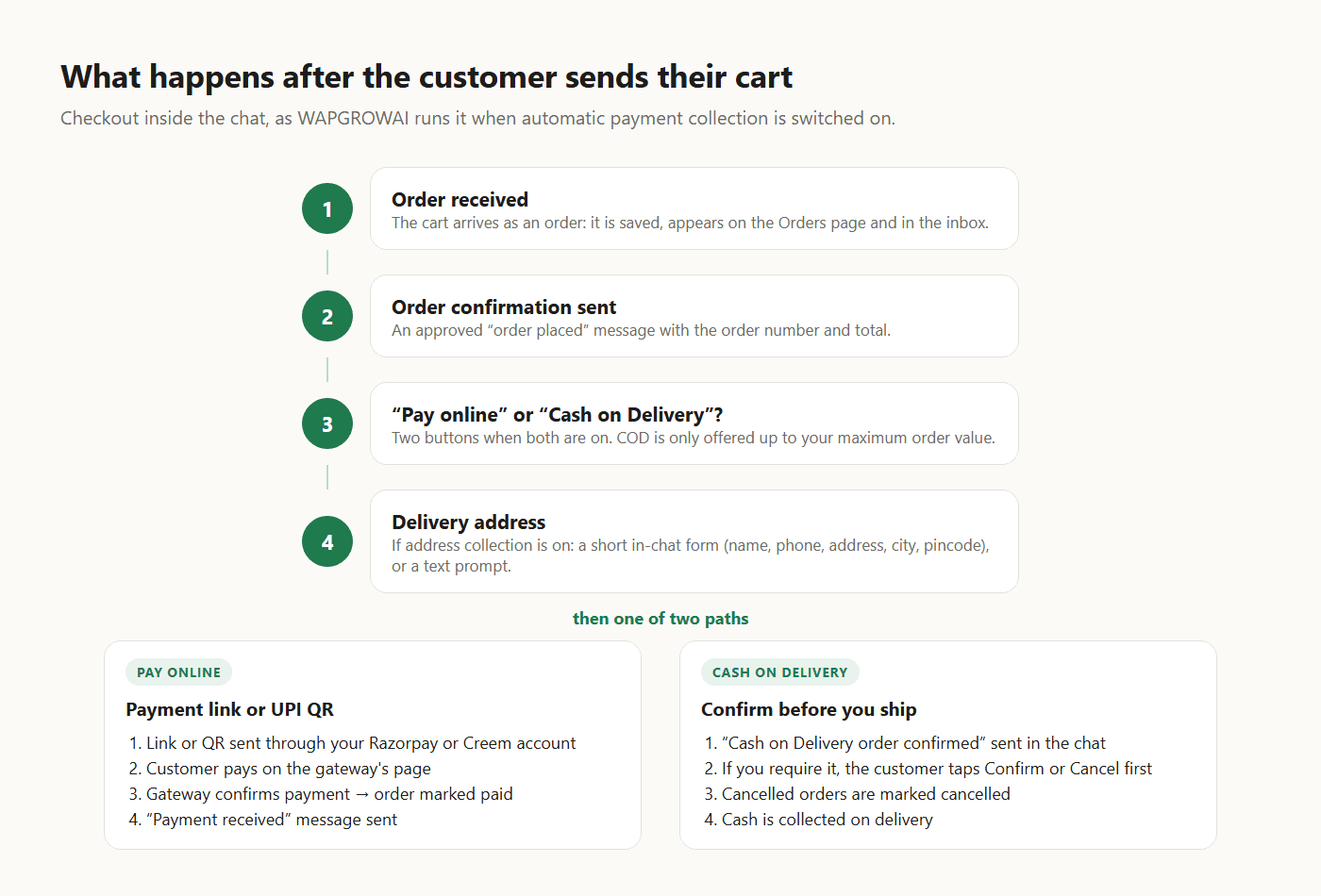
- Payment choice. If both online payment and cash on delivery are on, the customer gets two buttons. You can cap cash on delivery at a maximum order value, so expensive orders are only offered online payment.
- Delivery address. If address collection is on, the customer fills in a short form inside the chat — name, phone, address, city and pincode — built as a WhatsApp Flow. A chatbot or a simple text prompt can be used instead.
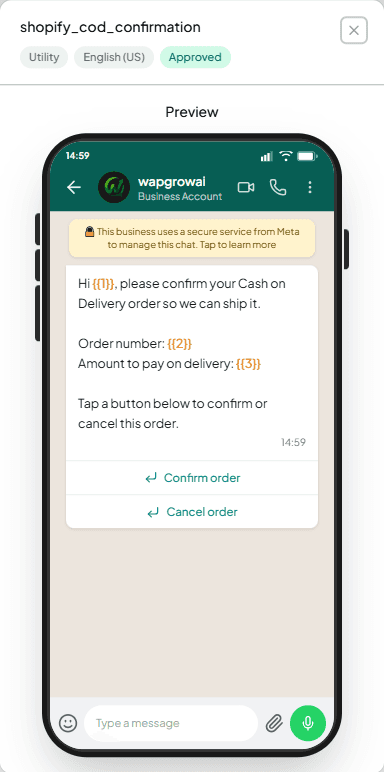
- Payment. For online payment, a payment link or a UPI QR code is sent through your own Razorpay account, or a checkout link through Creem, and you choose how long the link stays valid. For cash on delivery, the customer gets a confirmation — with an optional Confirm / Cancel step first, which cuts down on orders nobody intended to pay for.
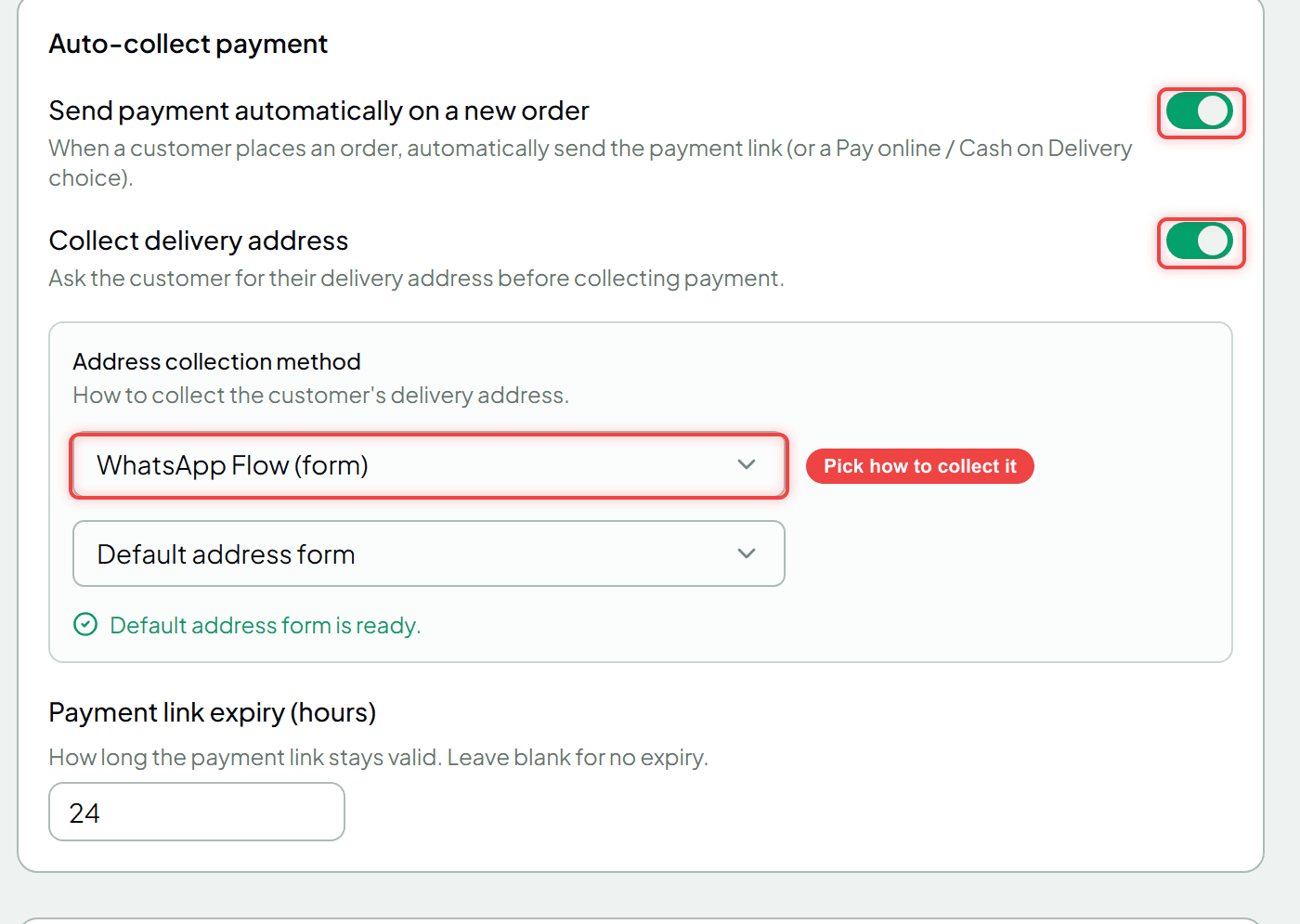
Automatic collection is off by default, deliberately: some businesses want a person to check stock or delivery coverage first. With it off, the agent sends the payment request from the order when they're ready.
Step 5: After payment
When the customer pays, the gateway notifies the platform, the order is marked paid, and a “payment received” message goes out. From there the order needs keeping up to date:
- Order updates. WAPGROWAI can message the customer when an order is placed, sent a payment link, paid, refunded, processing, completed or cancelled. Each event uses an approved utility template that the app creates for you, or one of your own; the first four are on by default.
- Refunds. Full or partial refunds are issued from the order, through the same gateway, and the customer is told.
- Follow-ups. A “payment received” trigger can start an automation — a thank-you, a feedback question a couple of days later, or a related product.
One WhatsApp rule shapes all of this: outside the 24-hour customer service window, only approved templates can be sent. Order updates are exactly what utility templates exist for, which is why each event is backed by one. The WhatsApp Business App vs. Platform guide explains the window and how Meta prices each kind of message.
If you sell on Shopify
A Shopify store already has its own checkout, so the job changes: WhatsApp becomes the channel for the messages around each order. With the store connected to WAPGROWAI:
- Catalog orders go to Shopify. If a customer orders products synced from your Shopify catalog, they get a link to a ready-filled Shopify cart and pay there, so stock and fulfilment stay in Shopify.
- Store orders trigger WhatsApp messages: an order confirmation, shipment updates, and — for cash-on-delivery orders — a confirmation message with Confirm and Cancel buttons, with the customer's answer recorded against the order. Payment-pending, payment-received, on-hold and delivered updates can be switched on too.
- One abandoned-checkout reminder can be sent after a delay you choose, to customers who agreed to receive marketing.
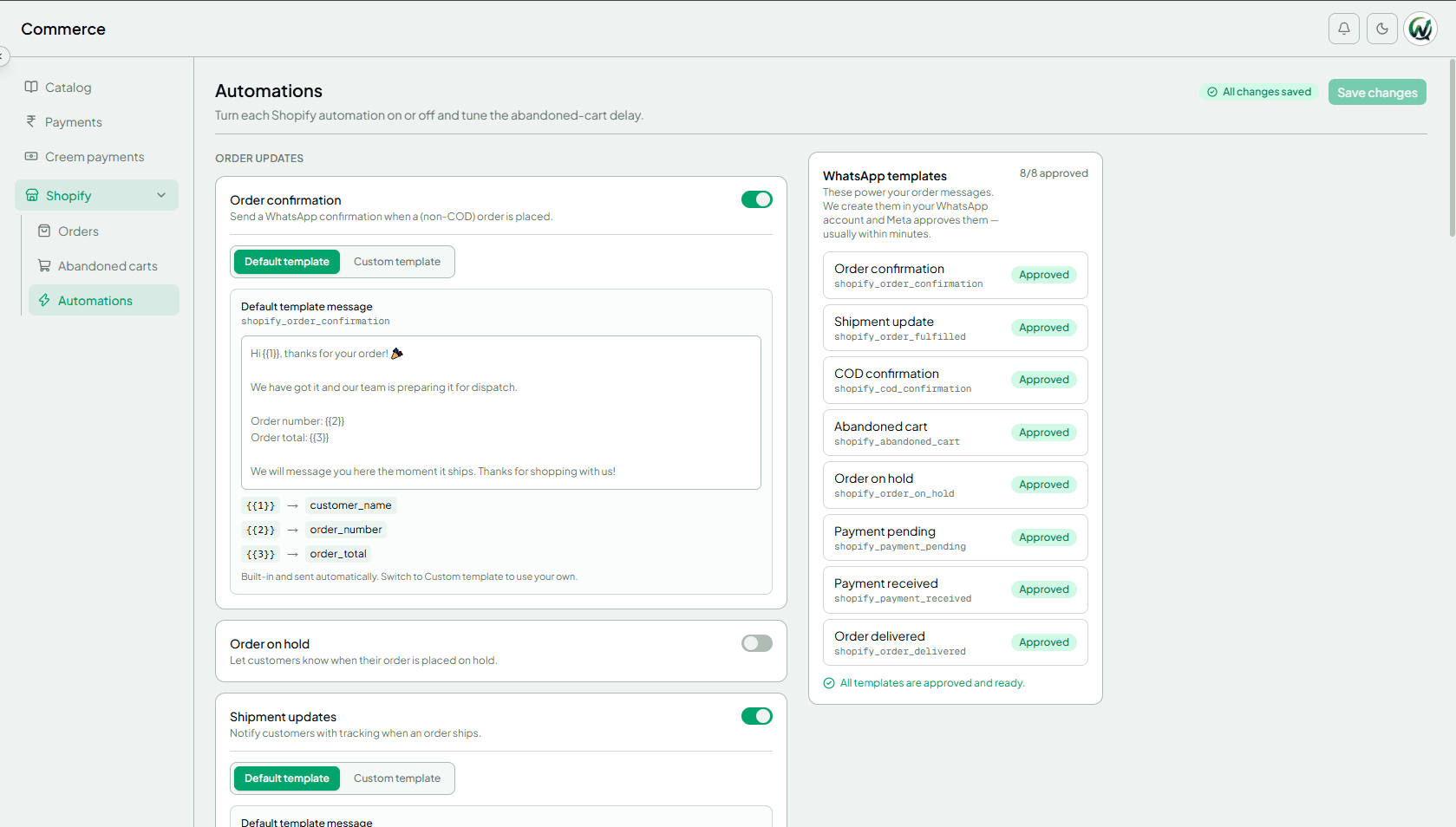
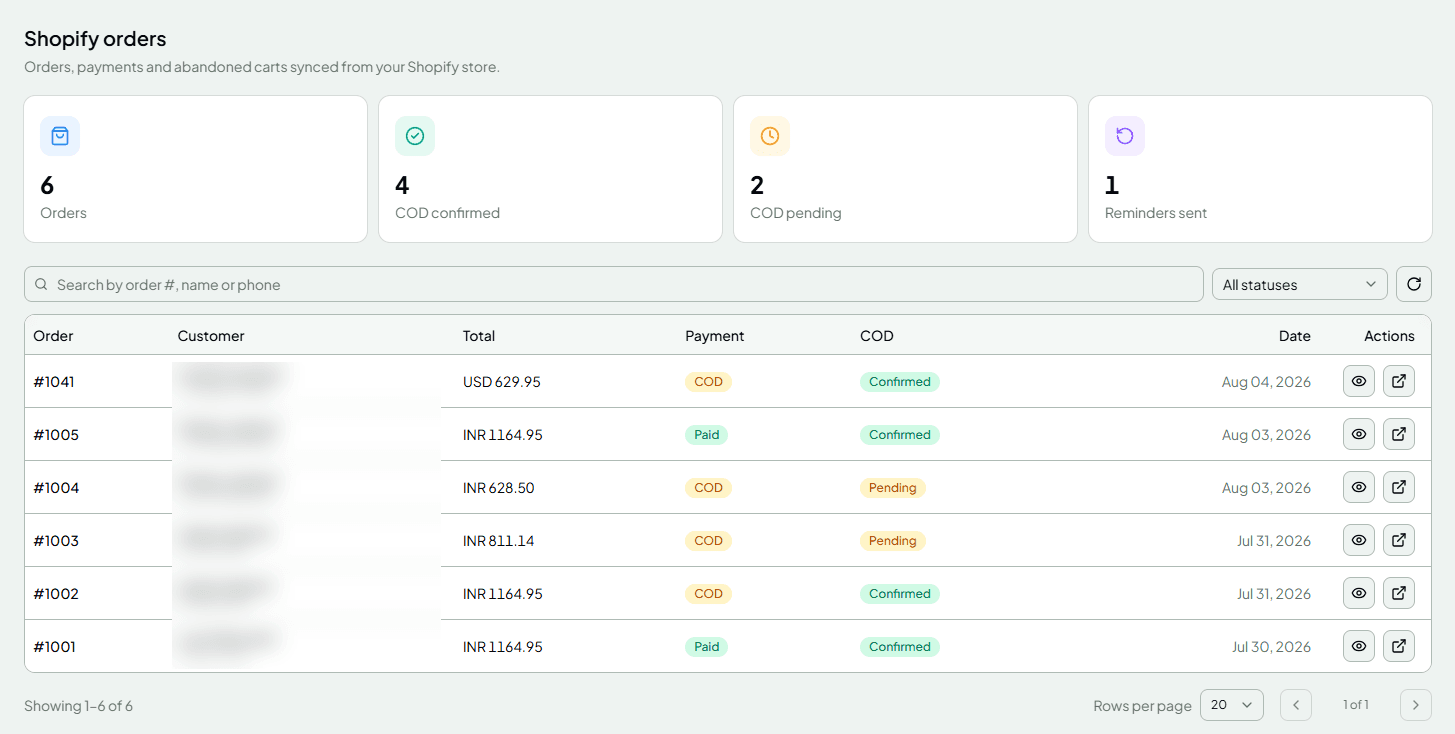
Every message uses an approved utility template created in your WhatsApp account when you connect, and any of them can be swapped for your own wording. The orders view then shows which cash-on-delivery orders customers have confirmed and which are still waiting.
Practical tips
- Curate, don't dump. A product list holds up to 30 items. Group products into sets by occasion or price and send the right set, not the whole catalog.
- Set a cash-on-delivery limit. COD converts well, but unpaid high-value orders are expensive. A maximum COD value plus confirmation protects you.
- Give payment links an expiry that matches how long you can hold stock — a day is a common choice.
- Fix catalog data first. Missing country of origin, prices or images stop products appearing in chat at all.
- Keep a person in the loop. The order lands in the same conversation as the customer's questions, so an agent can step in at any point.
What to check before choosing a tool
- Which payment gateways it supports, and whether payments go to your account. WAPGROWAI uses the business's own Razorpay (rupees) or Creem (US dollars and euros) account.
- Whether it supports cash on delivery, and how COD orders are confirmed.
- How the delivery address is collected — a form inside the chat beats a free-text message someone has to read.
- Whether order updates are automatic, and which events they cover.
Final thoughts
Selling inside WhatsApp works when each party does its own job: WhatsApp shows the products and builds the cart, the platform turns the cart into a confirmed, addressed order, and the gateway takes the money. Set up once, it replaces the most repetitive part of chat-based selling, and the conversation stays open for everything a person still needs to handle.
For the full setup, see WAPGROWAI for e-commerce and the checkout guide.
Three more,
worth your time
Ready togrow on WhatsApp?
Join 10,000+ businesses turning conversations into revenue.
Start free trialBook a demo