
What Happens After a Customer Messages Your Business on WhatsApp
How an inbound WhatsApp message moves through rules, a chatbot or AI agent, and a shared team inbox — and which parts are worth automating.
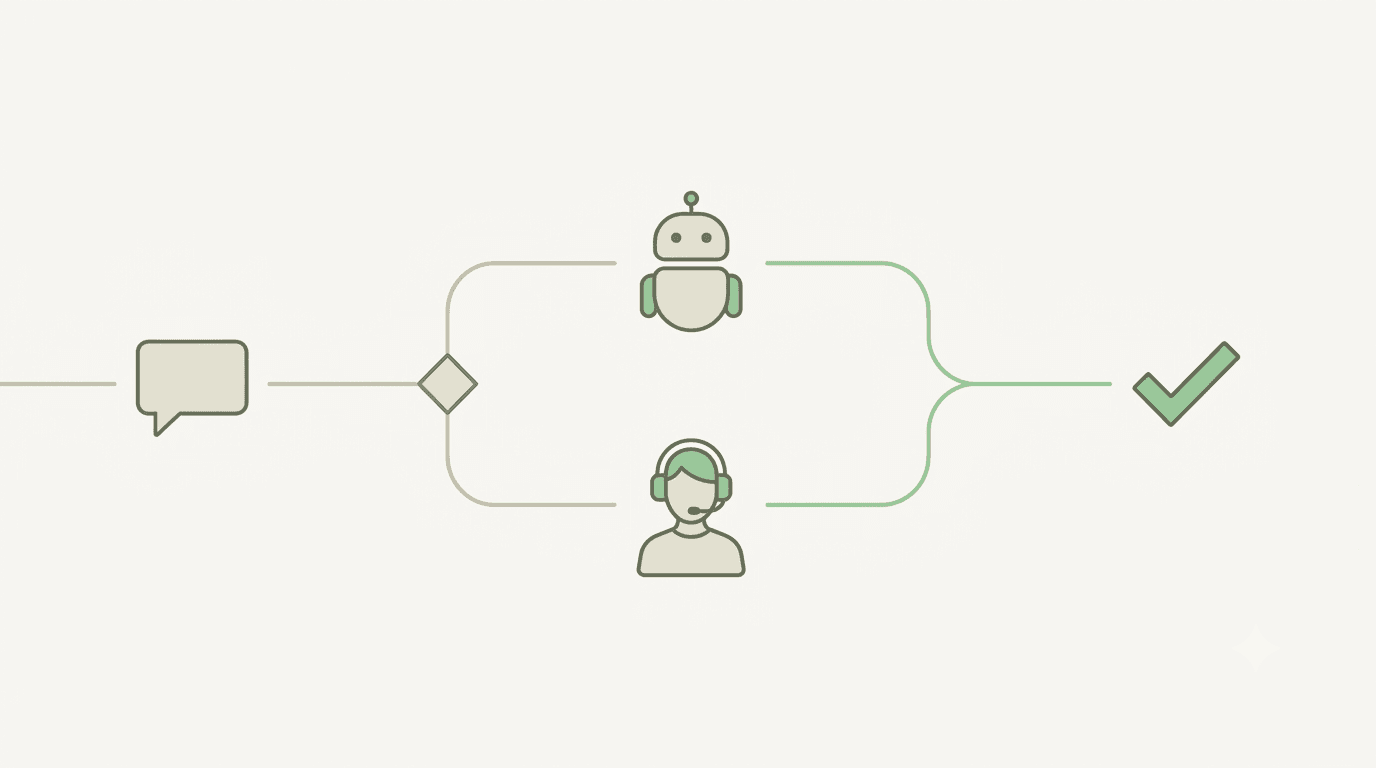
For most growing businesses, WhatsApp support starts the same way: one shared number, a phone or two, and whoever is free answering. It works until it doesn't. Messages arrive overnight and wait until morning. Two people reply to the same customer. A question that was answered fifty times last week gets typed out a fifty-first time. And nobody can say how long customers actually wait.
The fix is not “add a chatbot.” It is deciding, for every incoming message, what happens first, who owns the conversation, and when a person takes over — and then letting software carry out those decisions consistently.
This article follows one message through that kind of setup, step by step: from the moment it arrives, through automation, to a person on your team, and finally into the numbers that tell you whether the setup works.
The rule that shapes everything: the 24-hour window
Before any workflow, one WhatsApp rule decides what you are allowed to send. When a customer messages you, a 24-hour customer service window opens. Inside it, you can reply freely — text, images, documents. Once 24 hours pass since the customer's last message, you can only send pre-approved template messages until they write again.
This matters for support design in two ways. First, slow replies don't just annoy customers — after a day, they also take away your ability to answer normally. Second, every reply inside the window is a service message, whether a person or a bot sends it. Since October 2026, Meta charges for service messages beyond 1,000 free per phone number each month, so automation that sends five messages where one would do now has a cost. (The WhatsApp Business App vs. Platform guide covers the pricing in detail.)
In WAPGROWAI's team inbox, the window is visible on every chat: when it has closed, the reply box is replaced by a notice and a Send Template button, so nobody types a reply WhatsApp would reject. The help guide on templates and the 24-hour window shows the closed state.
Step 1: The message arrives
When a customer writes to your number, three things happen before any automation runs:
- A contact is found or created from their WhatsApp number, so their history follows them.
- A conversation is found or created — or, if their previous one had expired, it is reopened.
- The 24-hour window opens, timed from WhatsApp's own timestamp on the message.
The order is deliberate: the window is opened only after the message is safely stored, so automation that runs next is allowed to reply in free text.
Step 2: Rules decide what happens first
The first decision belongs to rules: “when this happens, if these conditions are true, do that.” In WAPGROWAI a rule is built from three parts:
- Trigger: a new message, a contact attribute being added or changed, a customer not responding, or a payment being received.
- Conditions: keywords in the message, message type, whether the contact started the chat, inside or outside working hours, or contact details and attributes. Conditions can be grouped with AND and OR.
- Actions: send a message or template, start a chatbot, start the AI agent, route the chat to a person or team, start a timed follow-up sequence, update a contact attribute, or notify your team.
Two rules come built in and switched off until you turn them on: a Welcome message inside working hours and an Out of office reply outside them. Working hours are set once in Settings, with a holiday mode that treats the business as closed. The built-in rules run last, so a more specific keyword rule always wins.
A practical starting set for most support teams is small: an out-of-office reply, a keyword rule that starts a chatbot for the top three questions, and a rule that routes everything else to the support team. You can read more in the help guide to rules.
Step 3: A chatbot or the AI agent handles the routine questions
Most support inboxes are dominated by a few repeat questions: order status, delivery times, opening hours, how to return something. These are what automation should take — and only these.
Option A: a structured chatbot
A chatbot is a flow you design: ask a question, branch on the answer, send information, collect details. WAPGROWAI's no-code chatbot builder uses drag-and-drop blocks — Message, Question and Condition, plus operations such as setting tags, updating the conversation status, sending a WhatsApp Flow form, writing to a Google Sheet or calling a webhook. Flows can start from a template library or be drafted by AI from a short goal, then edited.
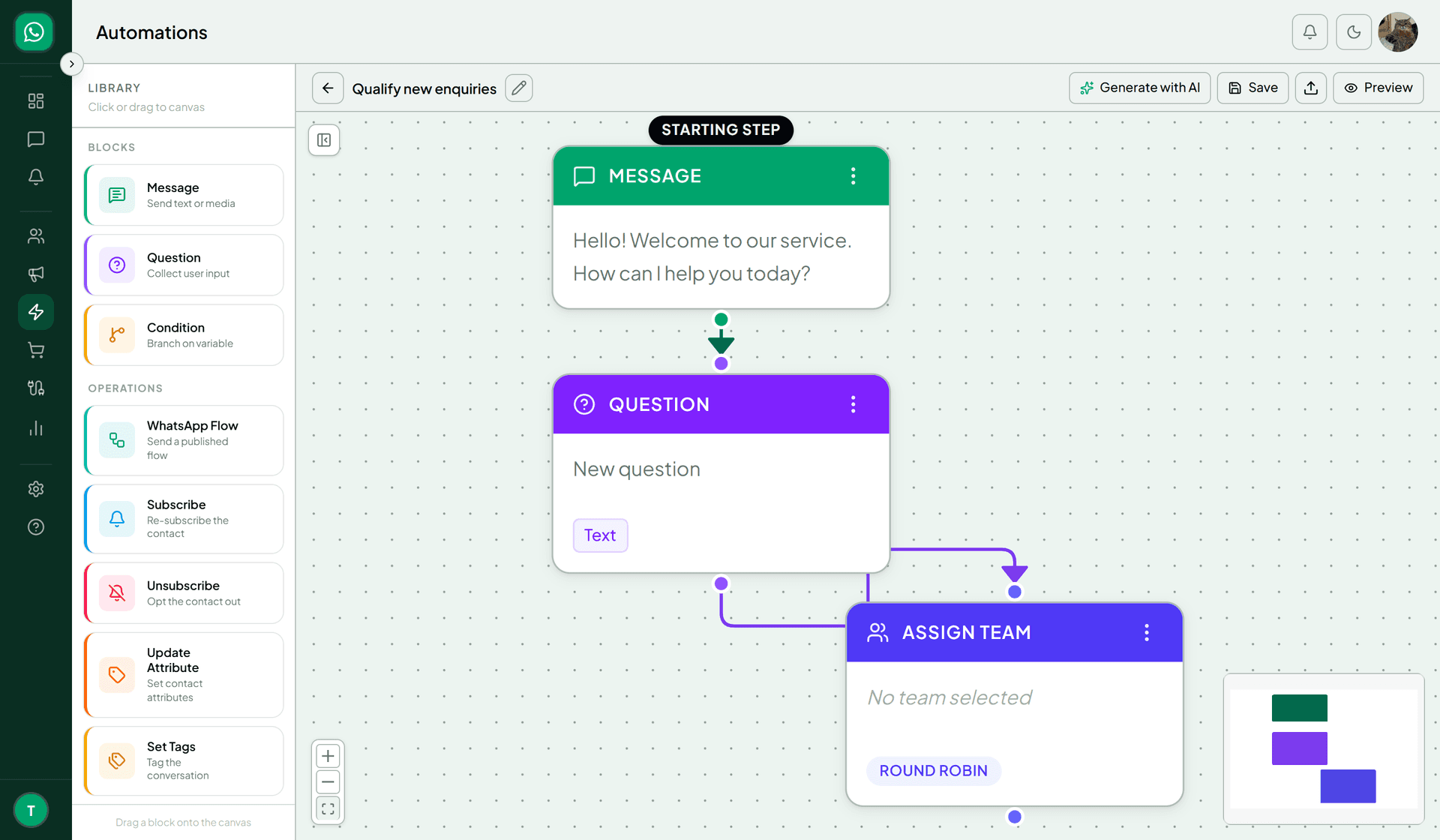
Chatbots are best when the answers are predictable and you want control over every word.
Option B: the AI agent
For questions you can't map out in advance, the AI agent answers in free text. It works from a business profile you write or upload — what you sell, your policies, your tone — and answers only questions that fall within it. Questions outside that scope get a fixed, polite refusal rather than a guess, and when a customer asks for a person, the agent stops and hands the conversation over with a short message. It can be started by a rule or manually from the reply box. The AI agent guide covers setup.
Whichever you use, leave a way out. A customer who can't reach a person will leave the conversation — or the business.
Step 4: Handoff to the right person
When a conversation needs a human, two questions matter: who takes it, and does everyone else know they have?
There are two ways to hand a chat over in WAPGROWAI, and they behave differently:
- A chatbot's Assign Team block picks one person automatically: the active member of that team with the fewest open and pending chats. This is the load-balanced “round robin” option, and it is what you want when chats should land on someone's desk without a manager in the middle.
- A rule that routes the chat to a team places it in that team's queue without choosing a person, for teams that prefer to pick up work themselves.
Routing rules also respect ownership. A rule won't pull a chat away from a running chatbot, the AI agent or a person unless it is set to override — and when it does, it switches that automation off first, so nothing keeps replying after the handoff. Every assignment and status change is logged in the conversation.
Step 5: The agent works the conversation
Once a chat is someone's, the shared team inbox gives them what the phone app can't:
- Ownership and status: an assignee on every chat, and a status of Open, Pending or Solved. Folders such as Assigned to me and Unassigned show each person their queue.
- Context: the full history with the contact, tags, private notes the customer never sees, and fields like sales owner or lead stage. Automated messages are shown in a different colour from messages a teammate typed, so it is clear what the bot already said.
- Speed: saved quick replies inserted by typing /, and an AI suggest a reply option that drafts a response for the agent to edit — it never sends on its own.
- When the window closes: the reply box switches to approved templates, as described above.
One design note: teams in WAPGROWAI organise assignment, not visibility. Everyone with inbox access can see every conversation, which suits small and mid-sized teams but is worth knowing if you need strict separation.
Step 6: Measure whether it works
A support workflow is only as good as its numbers, and three are worth watching above all:
- First response time: how long a customer waits for a first reply after the chat is assigned or created.
- Resolution time: how long until the chat is marked solved.
- Missed chats: conversations whose 24-hour window closed with no first response at all. This is the number that tells you customers are falling through the cracks.
WAPGROWAI's Team Inbox Analytics reports these alongside open, pending and solved counts, how many chats were solved by a bot versus by a person, and a per-agent performance table, filterable by date, team and agent. Reports can also be scheduled by email.
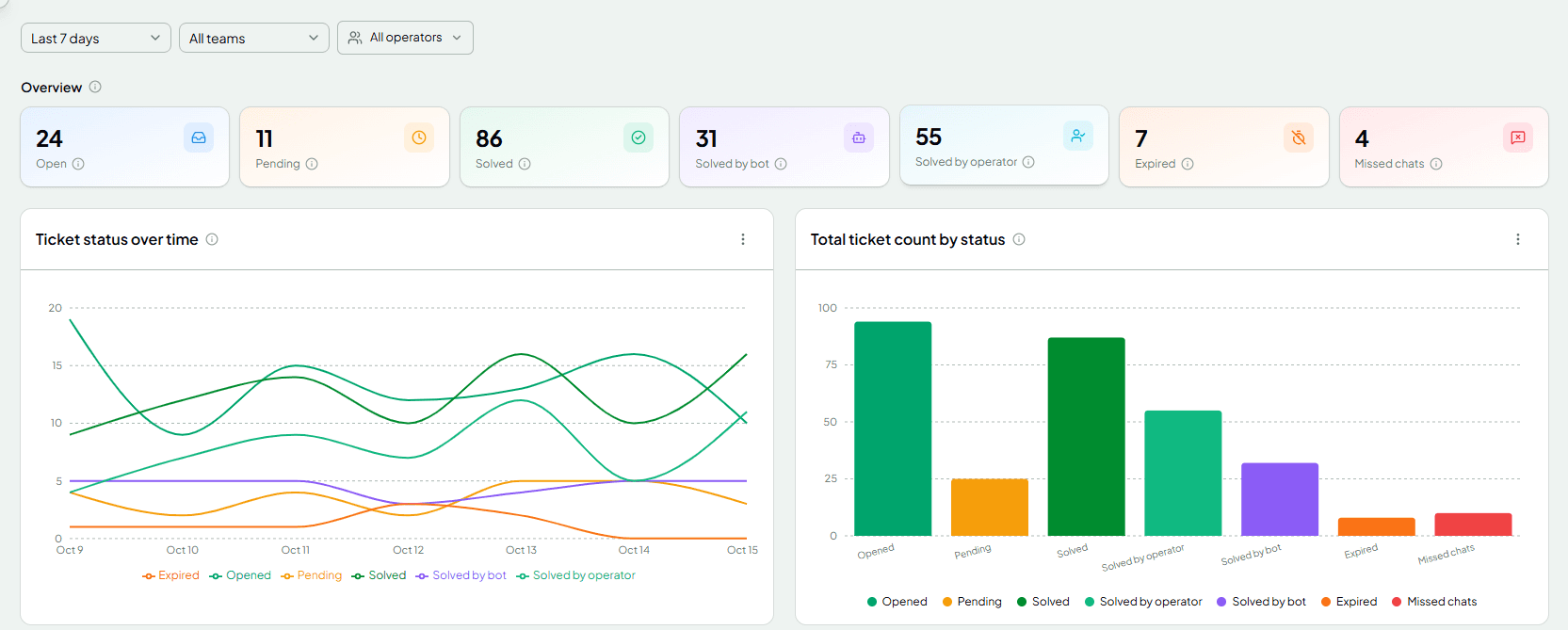
Watch the split between “solved by bot” and “solved by operator” over time. If the bot share rises while missed chats stay flat, automation is taking real work off your team. If missed chats rise, it is probably blocking customers instead.
What it doesn't do yet
Being clear about limits saves you from designing around a feature that isn't there:
- Skipping offline agents and restricting automatic assignment to working hours are marked “coming soon” in the chatbot's Assign Team block. Today, automatic assignment runs around the clock; deactivated users are skipped, but agents who are simply offline are not.
- Rule-based routing sends a chat to a team's queue; automatic person-by-person distribution happens through the chatbot's Assign Team block.
- The AI agent answers from the business profile you provide. It does not read your website or other documents on its own, so keep that profile complete and current.
A setup checklist
- Set your working hours and turn on the Out of office reply.
- List your five most common questions. Automate the top two or three with a chatbot, or write them into the AI agent's business profile.
- Make sure every automated path ends with a way to reach a person.
- Decide how chats are assigned: automatically to the least-busy person, or to a team queue.
- Create quick replies for answers your team types repeatedly.
- Approve two or three templates for re-opening conversations after the 24-hour window closes.
- After two weeks, check first response time and missed chats, then adjust.
Final thoughts
A good WhatsApp support setup is mostly decisions, not features: what gets answered automatically, who owns each conversation, and when a person steps in. Get those right and the tooling simply makes them happen every time — at 2 a.m., on a busy Monday, and on the fifty-first time someone asks about delivery.
If you want to see how this looks in practice, WAPGROWAI for support teams walks through the same setup, and the chatbot guide shows how to build the first flow.
Three more,
worth your time

Ready togrow on WhatsApp?
Join 10,000+ businesses turning conversations into revenue.
Start free trialBook a demo