
Inside WAPGROWAI: A Practical Guide to WhatsApp Team Inbox, Campaigns and Automation
A tour of what WAPGROWAI does today — inbox, contacts, campaigns, automation, commerce and integrations — who it suits, and what is still in development.
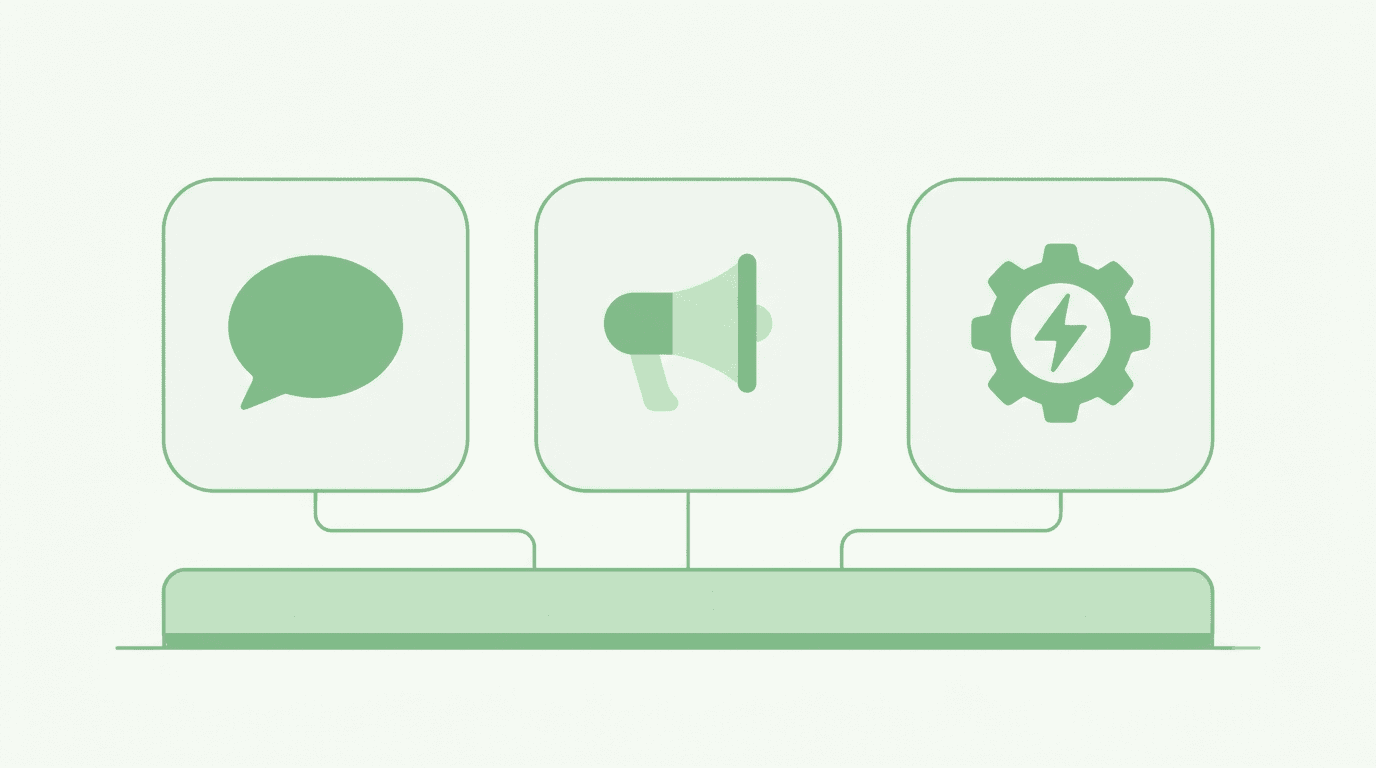
Once WhatsApp becomes a real channel for a business, the work splits three ways. Customers message you and expect answers. You want to message customers — order updates, reminders, offers. And a growing share of both is repetitive enough that software should be doing it.
Most teams start by handling all three from a phone, then add a broadcast tool, then a chatbot service, and end up with customer history scattered across all of them. WAPGROWAI is built to keep those three jobs in one place, on one WhatsApp number, with one record per customer.
This guide walks through what the product does today, how the parts connect, who it suits, and what is still being built.
What WAPGROWAI is
WAPGROWAI is a web application for running a business's WhatsApp conversations, campaigns and automation, built on Meta's official WhatsApp Business Platform (Cloud API). It is used from a browser by a team, rather than from one phone, and its interface is available in English, Hindi and Portuguese.
The main areas of the app map directly to the jobs above:
- Team Inbox — answering customers together.
- Contacts — the customer list, attributes and segments.
- Campaigns — templates and outbound messaging.
- Automation — rules, chatbots, the AI agent, follow-up sequences and in-chat forms.
- Commerce — catalogs, checkout and payments inside the chat.
- Connectors — integrations, an API and webhooks.
- Analytics — inbox performance and WhatsApp call reports.
Getting started: connecting a number
Everything begins with connecting a WhatsApp number through Meta's own signup window, which opens inside the app. There are two routes, and the choice matters:
- A number not on WhatsApp. The number lives on the Platform only, and every conversation is handled in WAPGROWAI. A number already registered on WhatsApp has to be removed from it first.
- Coexistence with the WhatsApp Business app. You keep using the Business app on your phone, and the same number also becomes available in WAPGROWAI. Existing contacts come across, and so can recent chat history if you allow it. Meta applies some limits to coexistence numbers — for example, broadcast lists in the Business app are switched off and group chats aren't synced.
The help guide to connecting your number walks through both, including the step where coexistence asks you to confirm from the phone.
Two kinds of messaging, two sets of rules
Before the tour, one distinction shapes how the whole product works: messages customers start versus messages you start.
- Inbound (customer-initiated): when a customer writes, a 24-hour window opens in which you can reply freely. This is the Team Inbox and most automation.
- Outbound (business-initiated): to message someone first — or after the window closes — WhatsApp requires a template approved by Meta, sent only to people who agreed to hear from you, within your number's daily messaging limit. This is Campaigns.
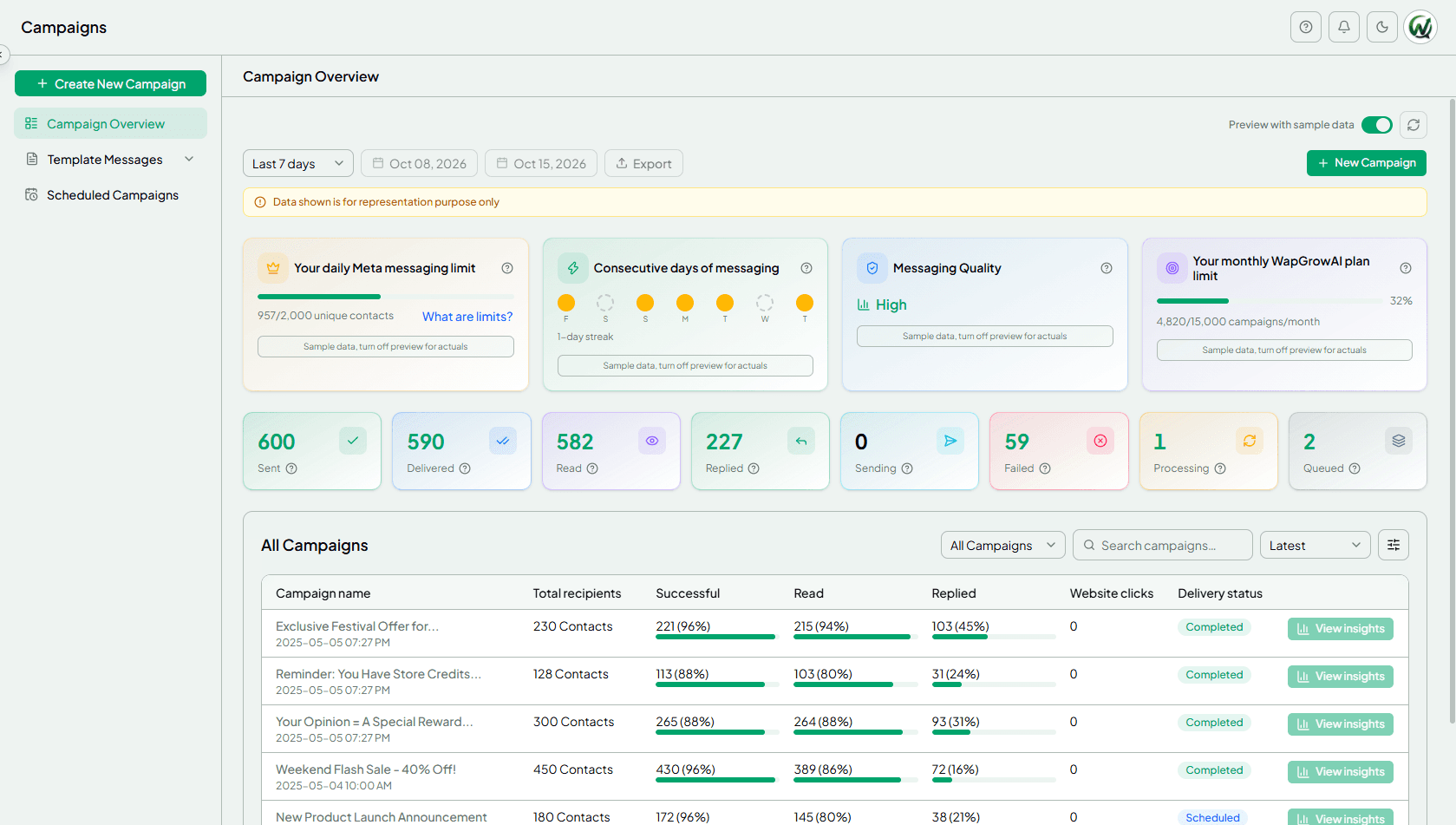
WAPGROWAI enforces this in the interface: an expired chat only offers approved templates, and the Campaigns area shows your current messaging limit. (For how Meta prices each kind of message, see WhatsApp Business App vs. Platform.)
Team Inbox: answering customers together
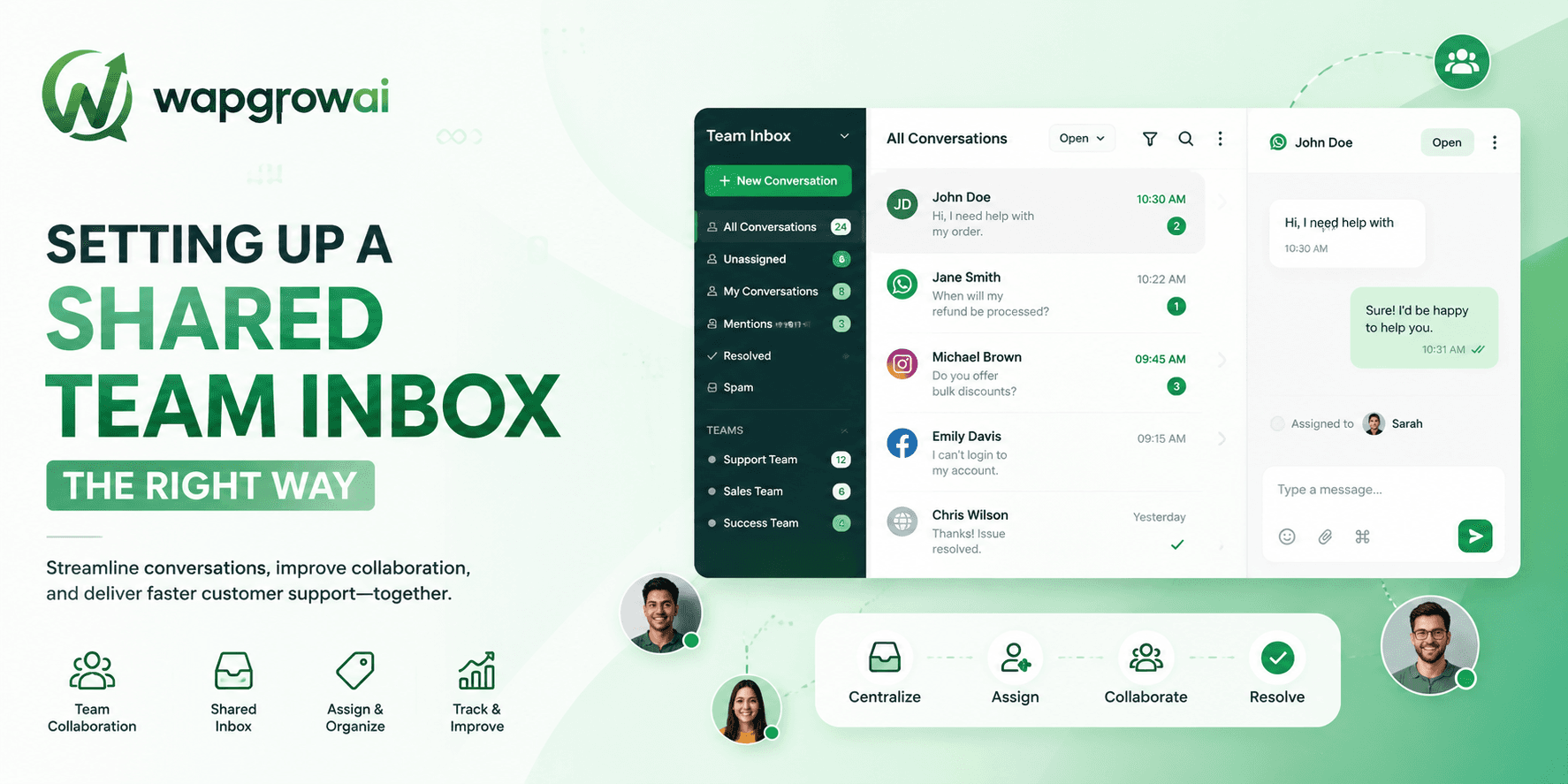
The Team Inbox holds every WhatsApp conversation for the number. Each chat can be assigned to a person or team, marked Open, Pending or Solved, tagged, and annotated with private notes. Agents reply with saved quick replies (type /), can ask the AI to suggest a draft they edit before sending, and see automated and human messages in different colours.
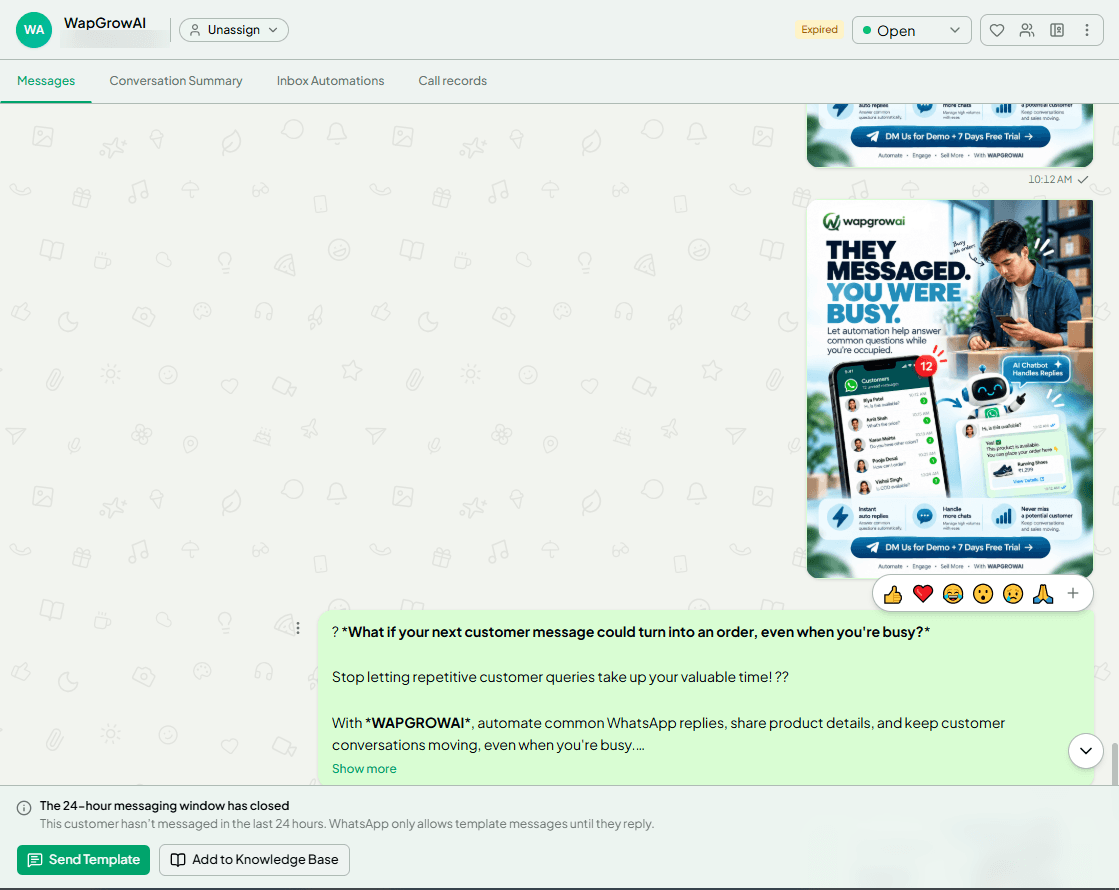
Customers can also call the business on WhatsApp. With WhatsApp Business Calling enabled, calls ring in the browser for the assigned agent, are logged on the conversation, and have their own analytics.
How a message moves from arrival through automation to a person is covered step by step in What Happens After a Customer Messages Your Business on WhatsApp, so this guide won't repeat it.
Contacts and segments
Every customer who messages you becomes a contact automatically, and existing lists can be imported from CSV or Excel files, with a column-mapping step and a preview of duplicates and rows missing a phone number before anything is saved.
Contacts carry attributes — up to 50 custom fields such as city, plan or lead stage — which feed both personalisation and targeting. Segments group contacts by those attributes and come in two kinds:
- Active segments update themselves: anyone who matches the conditions is in, anyone who stops matching drops out.
- Static segments are a fixed snapshot, for example a list from an event.
Conditions can be combined with AND inside a group and OR between groups. Consent is handled at the contact level too: a customer who replies STOP or UNSUBSCRIBE is automatically excluded from future campaigns. See the guide to segments.
Campaigns: messaging customers first
Campaigns start with templates. You write them in the app — marketing, utility or authentication — with variables, a text, image, video or document header, and buttons (quick replies, website links, a phone number or a copy-code button), or start from a template library. Templates are submitted to Meta and their approval status is synced back.
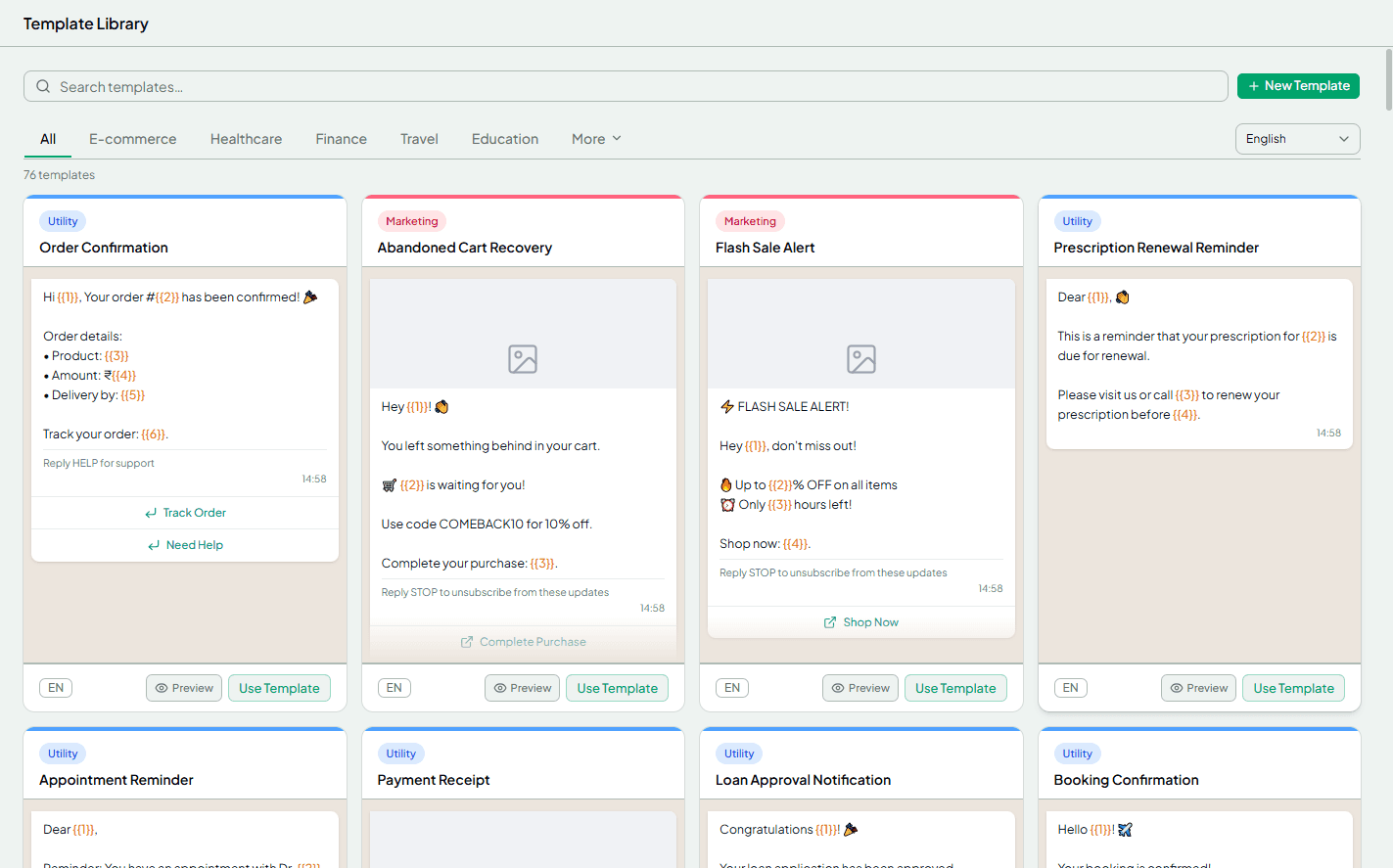
A campaign then pairs an approved template with an audience — a segment, a hand-picked list, or a file — and is sent immediately or scheduled. Two types are available:
- Single send: one message to the whole audience.
- Drip: a series of templates sent over time, which can stop for anyone who replies.
Results are tracked per recipient: sent, delivered, read, replied and failed, with Meta's error code for each failure. Quick-reply buttons can also do something when tapped — start a chatbot, send a message or send another template — so a campaign can lead straight into a conversation. Any reply opens the 24-hour window and lands in the Team Inbox like any other chat. The campaign guide covers each step.
Automation
Automation in WAPGROWAI is a set of building blocks rather than one feature:
- Rules: “when this happens, if these conditions match, do that.” Triggers include new messages, changed contact attributes, an unresponsive customer and a received payment; actions include replying, starting a chatbot or the AI agent, routing the chat, and starting a sequence. Built-in welcome and out-of-office replies follow your working hours.
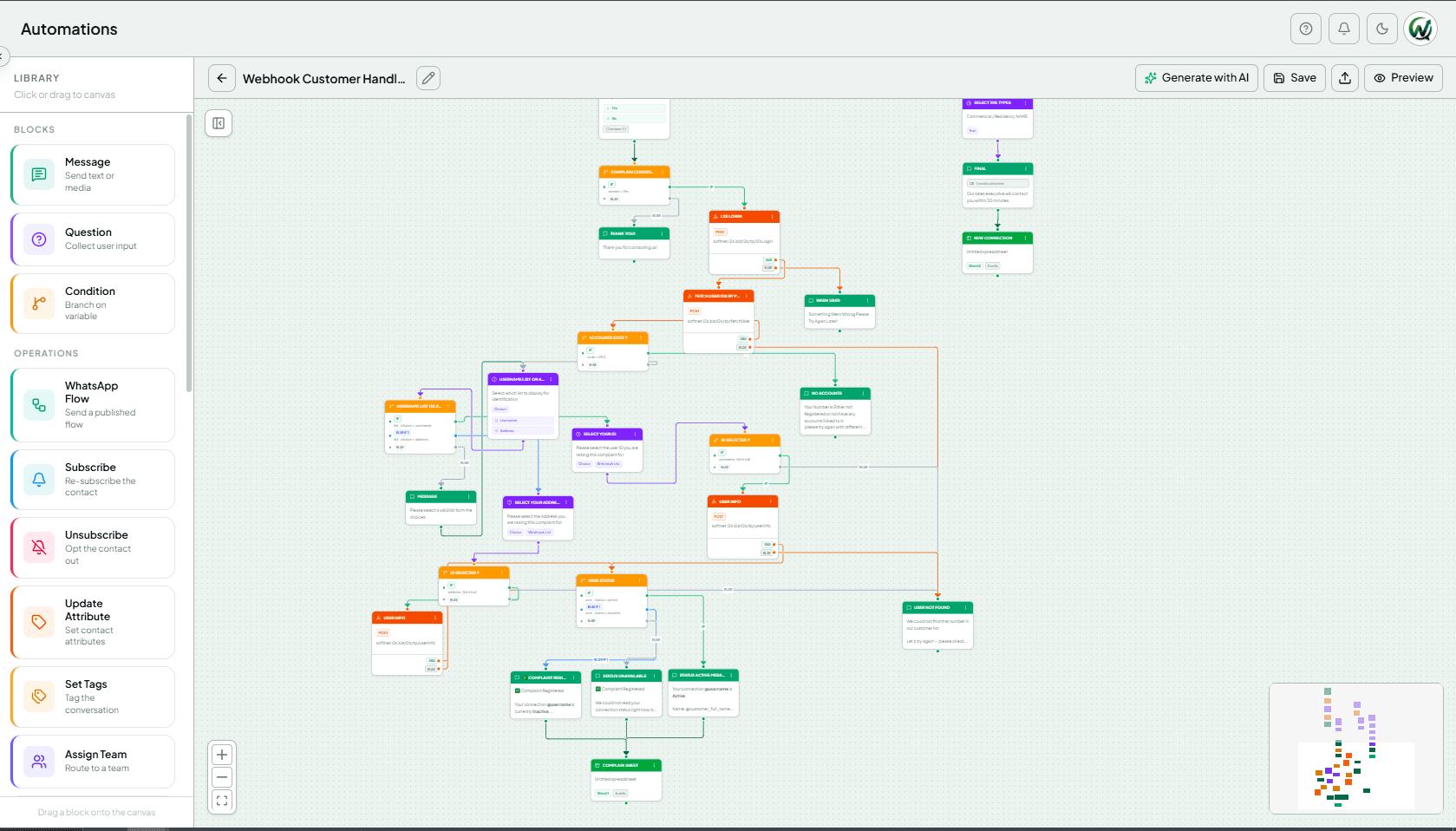
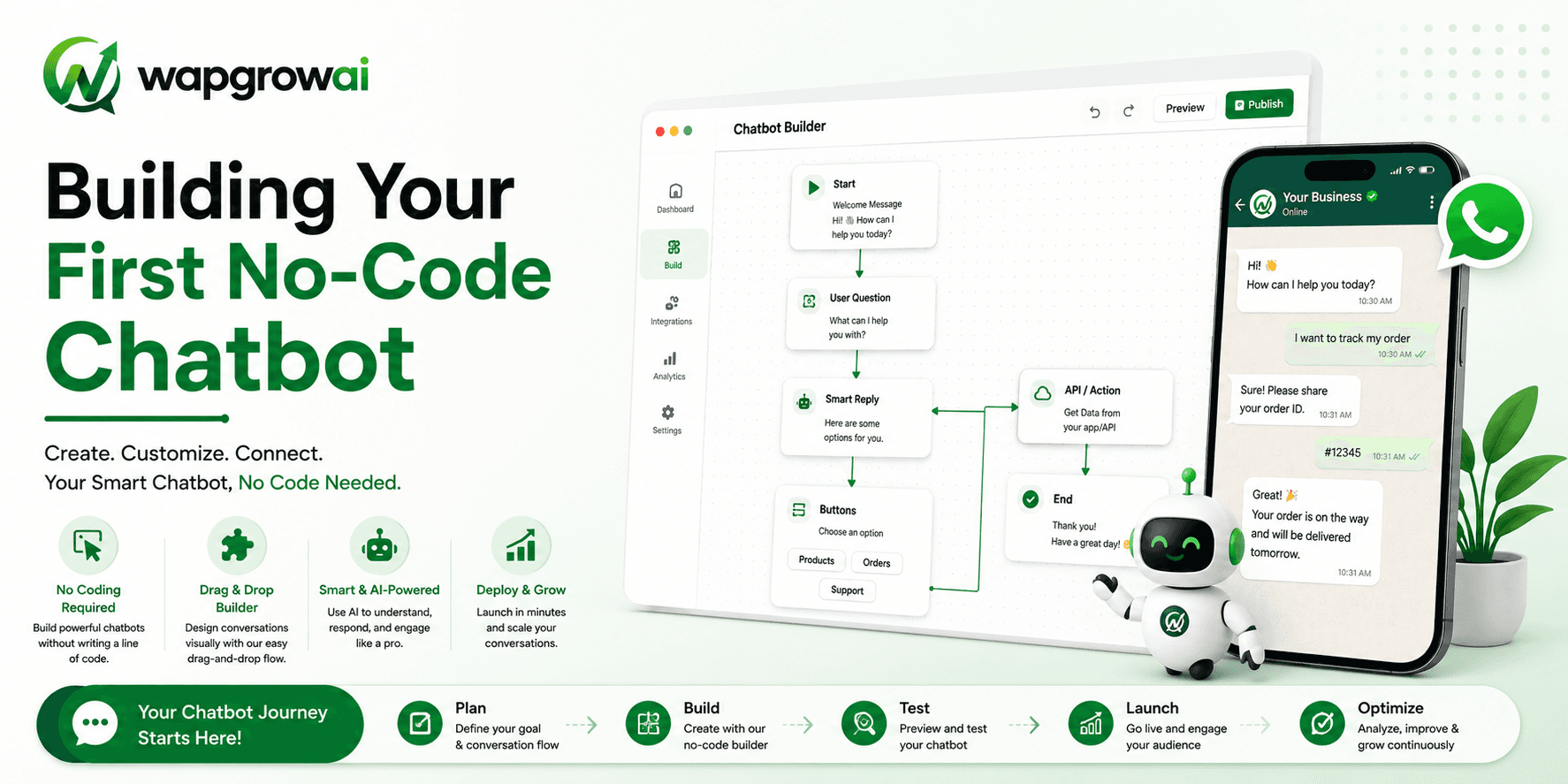
- Chatbots: a drag-and-drop builder for structured flows — questions, branches, assignment to a team, tags, Google Sheets and webhook steps. Flows can start from a library or be drafted by AI and edited.
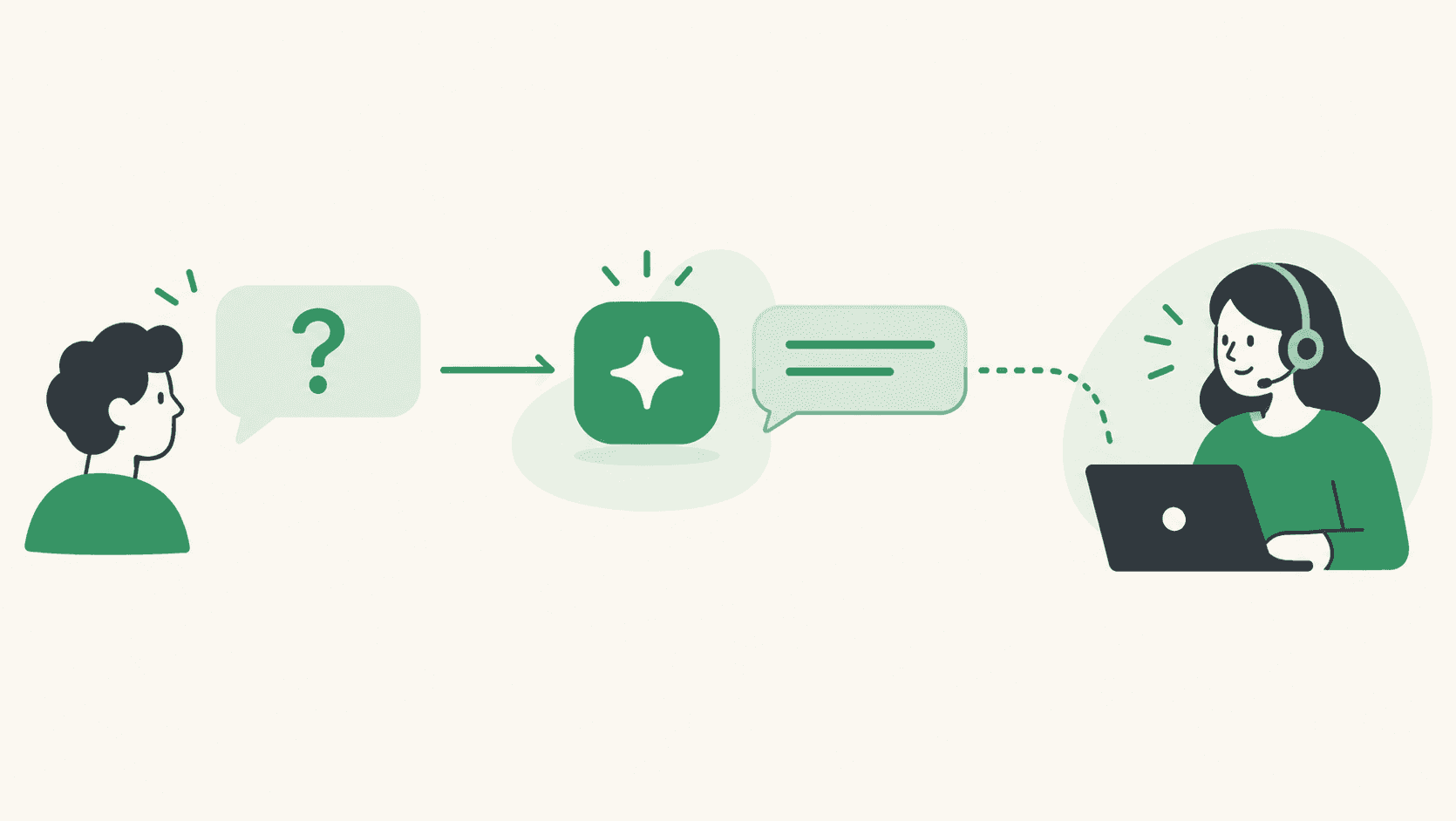
- AI agent: answers free-text questions from a business profile you write or upload, declines questions outside it, and hands the chat to a person when the customer asks.
- Sequences: timed follow-ups for one contact — for example, a check-in two days after an enquiry — started by a rule, with an option to stop as soon as the customer replies.
- WhatsApp Flows: forms inside the chat, such as a booking or lead form, built in the app, published to Meta, and sent from a chatbot. Answers are saved to the contact. See what WhatsApp Flows are.
Commerce in the chat
For businesses that sell through WhatsApp, the Commerce area connects a Meta product catalog (built from a Google Sheet or synced from a Shopify store through Meta's sales channel) so products can be sent in chat. Customers add items to a cart and send it as an order. WAPGROWAI can then confirm the order, ask whether they want to pay online or by cash on delivery, collect the delivery address with a short in-chat form, and send a payment link or QR code through the business's own Razorpay or Creem account. Orders and payments are tracked in the app. The checkout guide shows the flow end to end.
Integrations, API and webhooks
The Connectors area links WAPGROWAI to other systems: integrations with Shopify, HubSpot and Google Sheets, payment connections for Razorpay and Creem, and — for developers — a REST API with access tokens, usage limits, request logs and in-app API documentation, plus outbound webhooks with delivery logs so events such as received messages and button taps can reach your own systems. See WAPGROWAI for developers and the API token guide.
Analytics
Team Inbox Analytics reports open, pending, solved and expired chats, the split between chats solved by a bot and by a person, missed chats, and per-agent first-response and resolution times. A separate report covers WhatsApp calls, and summaries can be emailed on a schedule to people who never open the app.
Who it suits — and who it doesn't
WAPGROWAI fits businesses for whom WhatsApp is a main channel and more than one person handles it:
- Online stores and D2C brands taking questions, orders and payments in chat.
- Support teams sharing one number across several agents.
- Sales teams qualifying and following up leads on WhatsApp.
- Marketing teams running opted-in campaigns to segmented lists.
It is a less natural fit in two cases: if you need email, live chat and social channels in one inbox today, since it is WhatsApp-first; or if teams must be strictly prevented from seeing each other's conversations, since everyone with inbox access sees all chats.
Still in development
- Instagram automation is being built and is not yet available.
- More integrations beyond those listed above are in development.
- Mobile apps are not yet published; WAPGROWAI is used in the browser.
- Smarter auto-assignment — skipping offline agents and limiting assignment to working hours — is marked “coming soon”.
Getting started
- Decide which number to use and whether you need coexistence with the Business app.
- Connect it and import your contacts.
- Set working hours and turn on the out-of-office reply.
- Get two or three templates approved: a welcome-back message and the updates you send most.
- Automate your most common question with a chatbot or the AI agent.
- Invite your team and decide how chats are assigned.
Plans and the current free trial are on the pricing page, and more about the product is at wpautoai.com.
Three more,
worth your time
Ready togrow on WhatsApp?
Join 10,000+ businesses turning conversations into revenue.
Start free trialBook a demo